.webp)

Open LinkedIn's My Network, select Manage, then choose Sent to see your unanswered connection requests. Invitations expire after six months, so Sent is a list of open invitations, not your complete outreach history.
If you're checking how to see pending connections on LinkedIn because a campaign looks stuck, start with the Sent invitations page. Before rewriting your note or adding prospects, check which requests are still open, which people still fit your audience, and which leads need another channel.
How to See Pending Connections on LinkedIn Quickly
A campaign can look stalled when the issue is an invitation waiting for a response. Check the account's Sent queue before changing campaign status or contacting the prospect another way.
On desktop, open My Network, select Manage beside the invitations area, then choose Sent. The list shows invitations still awaiting a response. Confirm which LinkedIn account is open, especially if you manage outreach for multiple accounts.
Where each invitation queue lives
Use the queue that matches the task. Sent requests are outbound; Received requests are inbound.
| What you need | Where to open it | What that screen shows |
|---|---|---|
| Sent requests on desktop | My Network, then Manage, then Sent | People, Pages and Events with invitations awaiting a response |
| Sent requests in the app | My Network, then Invitations, then Sent | Unanswered invitations for the account logged in on the phone |
| Received requests | Manage or Invitations, then Received | Requests other members sent you |
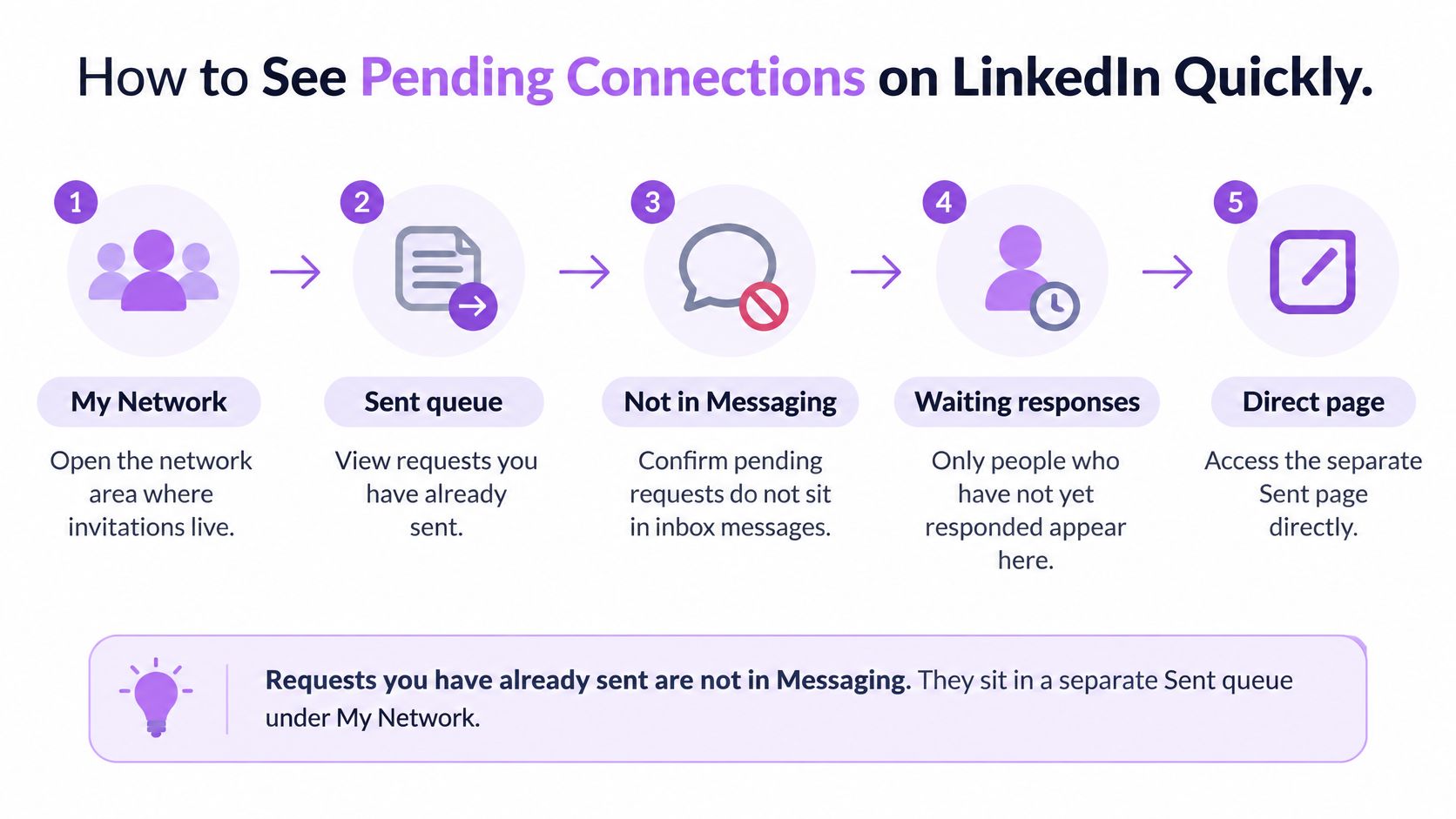
[Desktop screenshot placement: Sent tab with the account identity checked. Suggested alt text: LinkedIn desktop Sent tab listing pending connection requests.]
Audit rule: Match a pending invitation to the correct CRM record before changing its campaign status.
A profile visit adds context, but it isn't an acceptance or a reply. Use interpretar las visitas a tu perfil to distinguish profile-view activity from a conversation. Keep those signals separate in reporting, and don't mark a prospect as engaged in a sales conversation based only on a profile visit.
Sent and Received Invitations on Desktop
The invitation manager contains inbound and outbound work. Mixing them up makes an outreach audit unreliable.
LinkedIn's invitation-management guide documents the desktop path through My Network → Manage → Sent, where unanswered invitations to people, Pages, and Events appear.
Choose the tab that answers your question
Open Manage beside the invitations area.
Choose Received to review requests other members sent you.
Choose Sent to inspect your own unresolved invitations.
Received is inbound. Accepting or ignoring an incoming invitation doesn't resolve an invitation you sent to another prospect.
Sent is outbound. Once someone accepts your connection request, they're no longer a pending prospect in that queue. Their next action belongs in your messaging workflow.
Say a founder checks invitations before reviewing the sales pipeline. Received contains potential partners asking to connect, while Sent contains prospects from an outbound campaign. Both lists deserve attention, but they shouldn't share the same campaign status.
Reconcile the account with your CRM
For each relevant Sent entry, check:
Identity: Match the person's profile, not just their name.
Campaign: Identify the outreach sequence responsible for the invitation.
Ownership: Confirm which rep should take the next action.
Relevance: Check whether the person's role and company still fit your offer.
A missing name doesn't prove that someone accepted. Check the connection or activity record before moving them into an accepted-connection sequence.
Keep exports in the CRM or a restricted working sheet. A list of people who haven't agreed to connect doesn't belong in a broadly shared client presentation.
Find Pending Invitations in the LinkedIn App
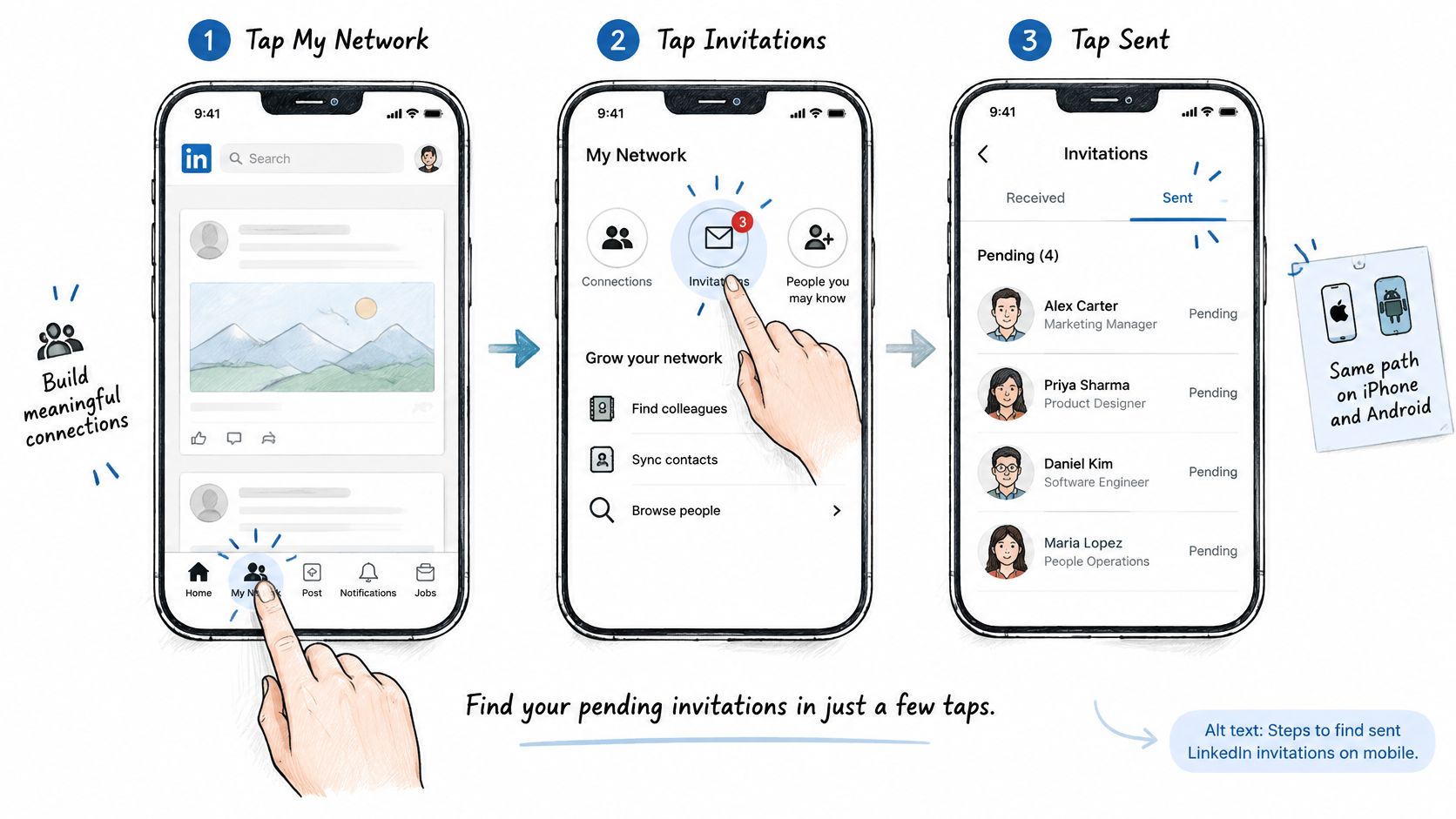
On iPhone and Android, start in the network area rather than your inbox. The phone is useful for checking a specific prospect, though desktop is easier for a deliberate account-wide review.
Open the LinkedIn app.
Tap My Network.
Tap Invitations.
Select Sent.
Scroll through the unanswered invitations.
If your layout groups Invitations under a network or Grow header, open that area first. Stay alert to the tab name: Received contains incoming requests, not the prospects you invited.
When the phone list looks wrong
Don't assume the visible rows represent the entire account. Scroll before concluding that an older invitation is missing.
If a prospect has just accepted on desktop, refresh the app before taking action. Then check that the phone is signed into the profile that sent the invitation.
Missing Sent tab: Update the app and reopen the invitations area.
Unexpected names: Verify the logged-in account.
Conflicting status: Refresh, then compare the prospect's connection status with your CRM.
Large cleanup: Move to desktop so you can review context alongside each decision.
[Mobile screenshot placement: Sent invitations list on a phone. Suggested alt text: LinkedIn mobile app Sent invitations list on a phone.]
A Withdraw control may appear beside an individual request. Don't tap it because the invitation is old; first decide whether you still want that connection and whether another rep is working the account.
Withdraw Pending Requests One by One or in Bulk
A pending invitation belongs in your triage list, not on an automatic cleanup timer. Withdraw it when the person is the wrong fit or your team has stopped pursuing the connection. If the invitation is still relevant, leave it open and review it later.
Withdraw an individual request
Open Sent.
Find the person and confirm their identity.
Open the invitation's more options menu and choose Withdraw.
Confirm the action if prompted.
Update the lead's status in your CRM.
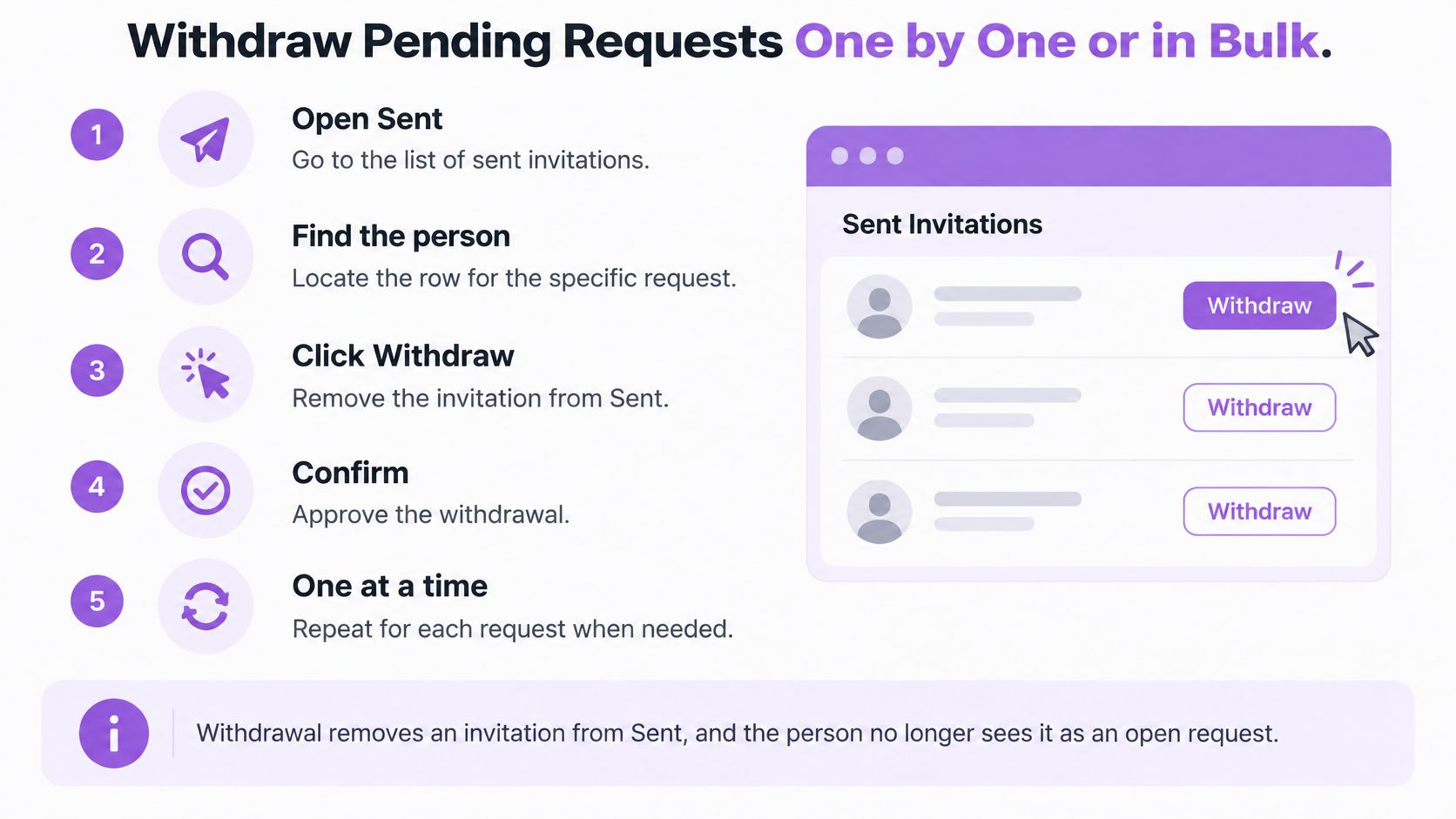
[Withdrawal screenshot placement: A Sent row showing the Withdraw control. Suggested alt text: Withdraw button on a LinkedIn sent invitation.]
Handle a larger cleanup deliberately
If you're looking for how to withdraw all pending connection requests on LinkedIn, don't assume the Sent view has a select-all option. Use a bulk control only if LinkedIn displays one. Otherwise, review requests in manageable batches and withdraw only those that are no longer relevant.
| Decision | Suitable action |
|---|---|
| Wrong person or irrelevant company | Withdraw and correct the targeting |
| Relevant prospect with recent outreach | Leave open while the sequence is still appropriate |
| Strategic account with another active conversation | Coordinate with the account owner |
| Stale prospect suitable for email | Change channel and record the decision |
Check LinkedIn's Sent queue to confirm which invitations are still pending. Flowkon also supports automatic invite-withdrawal management: you can include a withdraw pending invites step in a campaign. Set up that step for prospects whose requests you no longer want left open, and review the campaign logic before applying it broadly. Flowkon does not publish a default withdrawal interval in the cited guidance, so don't treat a suggested review threshold as a platform rule.
For prospects who remain pending after your team's review threshold, consider an appropriate email touchpoint instead of counting on the invitation alone. Flowkon's multichannel campaigns can plan LinkedIn connection requests, follow-ups, and email touchpoints in one flow. Check the invitation in LinkedIn when you need to verify its current status; a campaign delay alone does not show whether LinkedIn has accepted, withdrawn, or restricted a request.
Check resend rules before retrying
Withdrawal and expiry aren't interchangeable. Before resending a withdrawn request, check LinkedIn's help guidance for the current cooldown. The information available here doesn't establish a verified waiting period.
The guidance also doesn't confirm whether withdrawal triggers a recipient notification. Don't promise a client the action is invisible; the person may already have seen the original invitation.
Withdraw invitations when they're no longer relevant, not to reset an account or force a response.
How Long LinkedIn Invitations Stay Pending
Invitations expire after six months, and LinkedIn may send up to two reminders before expiration, according to LinkedIn's invitation-expiry guidance. Reminders stop when the invitation is accepted or archived; an expired invitation is no longer pending, and a new invitation can be sent.
That invitation lifespan isn't the same as an invitation restriction or a personalized-note allowance. Track each separately.
Pending status, expiry and invitation limits
Figures in LinkedIn Help may change, so check the current guidance before building a sending plan.
| State | What LinkedIn states | What to do |
|---|---|---|
| Still pending | An unresolved invitation remains open until a resolving action or expiry | Leave it, or withdraw if it's no longer relevant |
| Expiry | Invitations expire after the lifespan stated above | Remove expired requests from active follow-up reporting |
| Reminders | Reminders stop when accepted or archived | Don't send a duplicate invitation while one remains open |
| After expiry | No longer pending; a new invitation can be sent | Decide whether renewed outreach has a useful reason |
| Invitation limit | Applies to Basic and Premium accounts | Pause when restricted; upgrading isn't a bypass |
| Too many outstanding | Can cause an extended invitation restriction | Review relevance rather than expecting an instant reset |
| Personal note | Free and Basic have a monthly allowance; Premium doesn't have that note cap | Track note usage separately from pending invitations |
LinkedIn's invitation-limit guidance says limits apply to Basic and Premium members, a limit restriction typically lasts one week, and free or Basic members can personalize five connection requests per month, while Premium members can attach unlimited personalized messages.
Premium therefore changes note capacity, not permission to send unlimited invitations. Don't assume that withdrawing a pending request restores a personalized-note allowance either; the available guidance doesn't establish that.
Is there a pending-request cap?
LinkedIn doesn't publish a universal fixed outstanding-invitation threshold for every account. Check LinkedIn's help page rather than planning around an unofficial cap.
For campaign planning, use this LinkedIn invitation sending guide to distinguish operating choices from platform rules. A clean queue helps you understand outreach, but it doesn't create a guaranteed safe sending volume.
Why Connection Requests Stay Pending and What to Do This Week
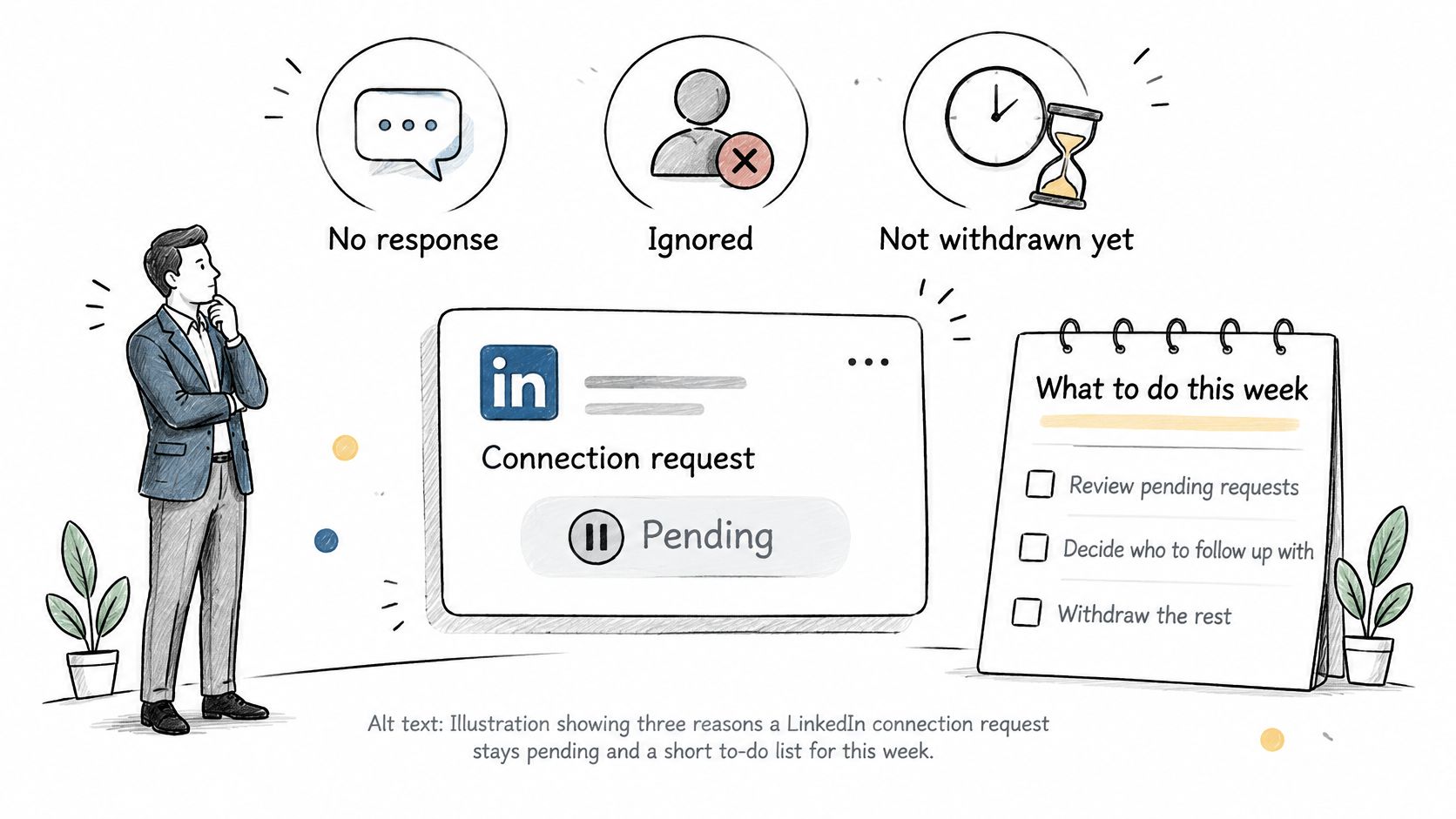
A pending invitation tells you there's no completed connection. It doesn't tell you why the recipient hasn't accepted.
They may rarely check LinkedIn, fail to recognize you, or see no clear reason to connect. A generic note can leave the recipient doing all the work of figuring out your relevance.
LinkedIn's invitation-restriction guidance warns that large volumes of ignored, pending, or spam-marked invitations can trigger restrictions; restrictions caused by too many outstanding invitations can last up to one month, and withdrawal doesn't immediately remove them.
Use a stale-lead review, not a blanket purge
I'd open Sent before changing an agency campaign, then match the unresolved invitations to CRM records. I'd keep each client account's review separate so one account's cleanup never becomes another account's sending rule.
Use this workflow alongside Flowkon:
Verify pending invitations in LinkedIn. Open Sent in the LinkedIn account that ran the campaign. Match each relevant profile to its lead record; don't infer pending status from a Flowkon campaign delay.
Review the campaign and CRM. Check whether the audience and invitation still fit. Flowkon can sync LinkedIn leads with Zoho CRM and push LinkedIn leads into HubSpot, but confirm an invitation's current status in LinkedIn before updating a lead.
Choose the next touchpoint. If your team reviews unanswered requests after 14 days, consider an email touchpoint where you have an appropriate verified business address. Flowkon can plan LinkedIn and email touchpoints in one multichannel flow and include a step to withdraw pending invites. Configure withdrawal only for requests you no longer want left open; check LinkedIn's Sent queue when you need to verify the current invitation status.
The 14-day review threshold is a team decision, not a LinkedIn limit or a documented Flowkon default. A campaign delay controls when a step runs; it does not, by itself, confirm an invitation's status.
Make the next message useful
For a finance leader, a role-specific connection note might be:
Hi Priya, your work leading finance at a growing services business caught my attention. I share practical ideas on reducing manual revenue reporting and thought it would be useful to connect.
Don't treat that as a universal template. Replace the reason with something you can honestly support.
For broader targeting decisions, Outbound Consulting's guide to LinkedIn prospecting for B2B businesses offers useful context. For messaging choices, see how to reach out to someone on LinkedIn.
After acceptance, send a short message tied to the connection's original context. While the request remains pending, don't assume ordinary connection messaging is available; consider email or an eligible LinkedIn messaging option without duplicating the same pitch everywhere.
Pending Invitation Questions and Your Next Step
Make the next review actionable
Knowing how to see pending connections on LinkedIn is useful only if someone owns the next decision. Open Sent, withdraw requests you wouldn't send again, and give stale prospects a considered second-channel plan.
Keep: Relevant invitations that still fit an active approach.
Withdraw: Requests you no longer want accepted.
Redirect: Prospects who deserve a different channel, not another identical nudge.
Flowkon offers LinkedIn automation for connection requests, follow-ups, and profile visits, alongside email outreach; each rep's LinkedIn account and email sending are linked securely without a browser extension. Visit Flowkon to test a campaign with a pending-invite withdrawal step on a focused group before applying it across your team.






.svg)

