
Monday's opportunity review starts with a problem: two records for the same buyer, an outdated employer on another contact, and Friday's InMail missing from Salesforce. Your reps cannot trust the buying committee in front of them.
The fix is not another toggle. Before you connect Salesforce and LinkedIn, decide how records match, which fields can change, and what happens when an owner changes. Get those rules right first. The setup is the easy part.
Choose the Right Salesforce LinkedIn Setup
Pick the route before you touch Setup. Teams mix up three different things and then blame the CRM. The native Sales Navigator integration shows LinkedIn context inside Salesforce. CRM Sync is a separate import and activity log. A third-party outreach tool writes its own campaign activity on top of both. A custom API build is a fourth path, and it only pays off when developers will own matching and limits.
Salesforce's LinkedIn integration page describes the native path clearly. Reps can view LinkedIn profiles and Sales Navigator insights on leads, contacts, opportunities, and accounts. They can send InMail and connection requests through Lightning actions, and managers can add those same steps to Sales Engagement cadences. The org can import account and contact records tied to open opportunities into Sales Navigator, and it can import assigned leads and map them to the matching user. Salesforce lists that native functionality for Professional, Enterprise, and Unlimited editions, and only when the organization also holds a LinkedIn Sales Navigator Team or Enterprise license. Check both licenses before you book a rollout. A Professional org with Core seats does not get this path.
| Route | What it covers | Setup effort | Main risk |
|---|---|---|---|
| Native Sales Navigator integration | Record context, InMail and connection requests from Lightning actions | Admin setup of the integration and page layouts | Needs matching Salesforce edition and Sales Navigator Team or Enterprise license |
| Native CRM Sync | Imports leads and contacts, and saves selected LinkedIn activities as Salesforce tasks | Enabled separately after the main integration | Imported records can remain in Sales Navigator after reassignment |
| Third-party outreach platform | Campaign sequences, enrichment and CRM sync, varying by vendor | Vendor connector, then a field-by-field review before the first write | Confirm which LinkedIn-approved route it uses and who owns each field |
| Custom API build | Whatever the team defines | High, needs developer time | Duplicate records and API limits if writes are not idempotent |
The out-of-the-box route can get costly when your team needs more than a widget. LinkedIn's current plan comparison places CRM integration and sync features under Sales Navigator Advanced Plus, so do not budget for Core seats and assume they include CRM Sync. The package itself may be free to install, but the required LinkedIn licenses and Salesforce access can change the per-rep total. Current guidance on Sales Navigator licensing also distinguishes narrower CRM features from fuller sync and writeback. Check your contract and the exact features you need before rollout. The native route puts LinkedIn context where the deal lives, but it is not a full two-way merge of company data.
If your goal is sequenced outreach rather than embedded Sales Navigator context, compare that total with Flowkon. Flowkon connects with Salesforce, syncs leads and activities automatically, and supports sequences that combine LinkedIn connection requests, follow-ups, and email touchpoints. Flowkon says it supports free LinkedIn, Premium, and Sales Navigator accounts, so a Sales Navigator subscription is not required for its connector. The Salesforce integration does require an eligible Flowkon plan: its current pricing page lists it on Professional and Custom. This can be a more flexible, lower-cost route for teams that would otherwise buy Advanced Plus mainly for CRM-connected outreach, but it is not automatically cheaper for every team. Compare the current per-rep prices and needed features before deciding.
A team that needs LinkedIn plus email in one sequence, with replies tracked, will outgrow Lightning actions. Flowkon has a Salesforce integration: during setup, you choose whether prospects become Leads or Contacts and whether to add them to a new or existing Salesforce Campaign. For LinkedIn campaign activity, the connector logs outgoing messages as Salesforce Tasks and records incoming replies as Tasks with their content, sender, and timestamp. Flowkon can include email touchpoints in the same sequence. Its Salesforce integration documentation says Salesforce records can show email outreach activity, but does not specify which email events it logs or whether sent emails, received emails, replies, opens, or clicks become Salesforce Tasks. It also does not establish that every incoming and outgoing LinkedIn message outside a campaign is logged. Confirm the exact email events, their Salesforce record types, and the scope of LinkedIn message logging with Flowkon before promising a complete conversation history in Salesforce. The Sales Navigator Team or Enterprise requirement above applies to Salesforce's native integration, not automatically to a separate connector. Flowkon's integration page does not specify a Sales Navigator license requirement, so confirm the applicable LinkedIn account and Flowkon plan requirements with the vendor before rollout. Also confirm how existing records are matched, whether writes insert or upsert, and which user is recorded on each task. If the vendor cannot answer that in writing, do not turn the connector on.
A custom build makes sense when you already have an integration user, external IDs, and someone who will watch API consumption. It does not make sense as a shortcut around license checks.
Write one outcome on the ticket before you pick a row. Logged activity, faster lead context, or multichannel sequences are different jobs. That sentence decides the route. Everything after it is implementation.
Map Fields and Set Sync Rules Before Go-Live
Data quality breaks more connections than bad admin clicks. Salesforce's data stewardship guidance put the baseline at about 15% of sales and service records containing duplicates and about 20% containing useless or stale data. If you automate writes on top of that, the sync copies the mess into a second system and then writes it back.
Match before you write
Normalize before you match. Lowercase emails, strip extra spaces and punctuation, standardize country codes, and reduce company domains to the registered domain. A business email is a strong key only after you have verified it. An unverified address from a scrape, or from a guessed pattern, will attach the wrong person to a live opportunity.
Query candidates with an indexed external ID or a selective filter. A broad fuzzy search on name plus company will match the wrong "Alex Chen" at a large account. Precedence should be boring and written down.
Existing Salesforce ID. If you already know the record, update that record.
Verified email. Use it only when the address has passed verification.
LinkedIn identifier plus company domain. This is the fallback, not the first guess.
Anything that matches two records, or matches none with confidence, goes to a review queue. Do not let the job pick. A wrong merge on a champion is harder to undo than a delayed create.
Decide who owns each field
Salesforce should own the commercial facts your team curates. The sync writes provenance and blank gaps you have explicitly approved. Job title is the field people argue about. I would let Salesforce keep a filled title, and allow a write only when the field is empty and someone has approved that mapping. Company changes are a review item, not an overwrite. A prospect who moved jobs is a new selling situation, not a silent field update.
| Field | System of record | Sync may write |
|---|---|---|
| Owner | Salesforce | No |
| Lifecycle stage | Salesforce | No |
| Consent | Salesforce | No |
| Manually curated notes | Salesforce | No |
| Job title | Salesforce unless the field is blank and writing it is approved | Only when blank |
| Company | Salesforce | No; flag an employer change for review |
| LinkedIn URL | Yes, as provenance only | |
| Source timestamp | Integration | Yes |
| Campaign ID | Outreach tool or Salesforce campaign | Yes, as provenance only |
| Last-seen event | Integration | Yes |
Store LinkedIn URL, source timestamp, campaign ID, and last-seen event so a later admin can see where a value came from. If you also push events out to other systems, keep that handoff narrow. A webhook for the events you have already approved is safer than letting every tool write the contact directly.
Pilot on a sample, then reconcile
Run a reconciliation job that compares source counts with CRM counts, lists orphaned records, and reports duplicate rate and match rate by workspace. Before a full rollout, sample records and score four things separately: match precision, duplicate creation, rejected writes, and stale-field overwrites.
A 200 response only means Salesforce accepted the call. It does not mean the right person, owner, or campaign was updated.
Hold go-live until the sample looks clean on those four measures. API success is not business success.
How to Set Up the Native Sales Navigator Integration
Work in order. Each step assumes the one before it finished, and most stalled rollouts skip the page-layout step or turn sync on before field rules exist.
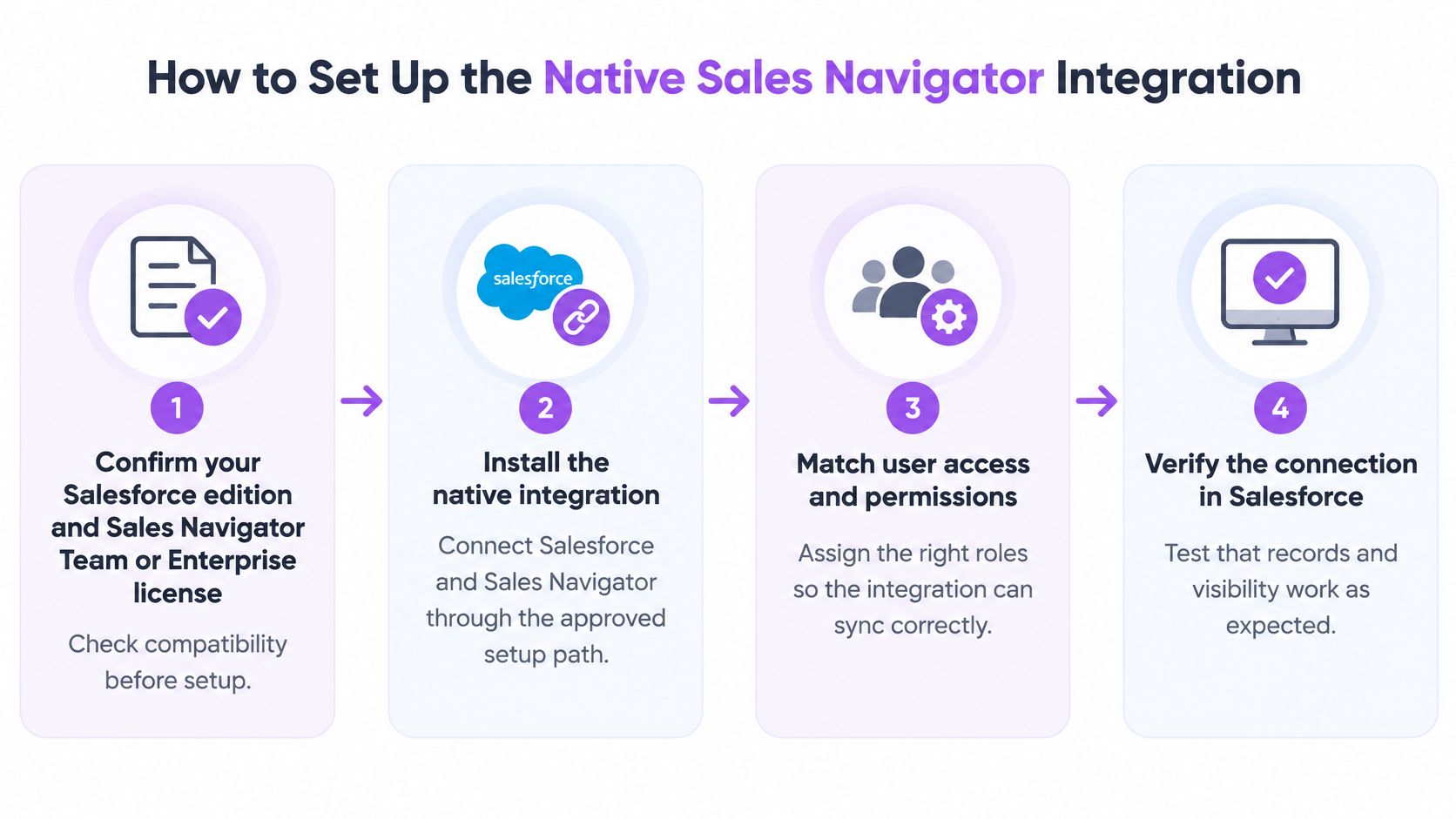
1. Confirm both licenses on a test profile
Confirm the Salesforce edition and a Sales Navigator Team or Enterprise license for the people in the pilot. Assign the integration to one sales profile first, not to the whole org. The common slip is enabling it for "all users" while the test rep sits on a profile that never received the permission. You then debug a blank page that was never going to load.
2. Turn on the integration, then place the components
Salesforce's setup article separates two jobs that admins treat as one. Enabling the native integration does not put LinkedIn on a record. You still add Sales Navigator components to the lead, contact, opportunity, person account, and business account layouts the pilot profile uses. If the rep's app uses a cloned layout, the widget on the standard layout does nothing for them.
Decide object access at the same time. An SDR queue may need lead and contact. An AE working live deals needs opportunity and account. Giving every profile every component creates noise and widens who can see professional data they do not work.
3. Treat CRM Sync as its own decision
CRM Sync can synchronize certain lead and contact data and save LinkedIn activities as Salesforce tasks. Leave it off until title, company, owner, and status have a written owner. The slip here is flipping sync on during the same change window as the widget, then discovering on Friday that titles moved without a user edit. Activity logging is useful. Unowned field writes are not.
If managers need tasks, enable sync only for the activity types you will read in pipeline reviews. A task type nobody opens still consumes attention when it is wrong.
4. Prove it on four records
Test one sales profile, one lead, one contact, and one open opportunity.
Widget. It appears on the layout that profile uses, not only in Setup.
Owner. The Salesforce owner maps to the LinkedIn account you expect.
Task. One logged activity creates the task type you agreed, on the right record.
Fields. Title, company, owner, and status did not change unless the ownership table said they could.
You are done when that test rep opens the opportunity, sees LinkedIn context on it, and finds the logged activity on the record. Screenshot the four checks and attach them to the change ticket. A verbal "it works on my lead" is how the next profile gets missed.
Installing the package is not the rollout. The rollout is one rep, on the layout they use, with an activity that shows up where a manager will look.
If the widget is missing, check the layout assignment before you reinstall anything. If the task is missing, confirm CRM Sync is on and that the activity type is in the writeback set. If the owner is wrong, stop and fix assignment rules. Do not "correct" it by letting the sync create a second contact.
Build an Outreach Workflow From Open Opportunities
The cleanest queue is the buying committee on deals you already own. Import the accounts and contacts tied to open opportunities, work those people, and log the touch on the Salesforce record. You are not building a cold list and hoping duplicate rules catch up later.
Say an SDR owns the renewals opportunity at Northline. Three contacts sit on the opportunity: Priya in RevOps, Marcus in finance, and a blank economic buyer. Monday is Priya. Tuesday is a check that yesterday's note attached to her contact, not to a new lead. The rest of the week follows the same record.
Day 0, connection request. Keep it specific and short enough to read on a phone.
Hi Priya, your team is rebuilding the renewals process, and we have helped two RevOps teams with the same handover. Worth connecting?
Day 3, after she accepts. One question, not a demo pitch.
Thanks for connecting. When a renewal moves from the CSM to finance, where does the handover usually break?
Day 6, email. Refer to the LinkedIn exchange and ask for a short call. Do not make her hunt the earlier message to understand this one.
Priya, you mentioned the handover into finance is where renewals stall. I can walk through how two RevOps teams split that step. Does Thursday at 10:30 for 20 minutes work?
Treat the gaps as a starting point to test, not a benchmark. If acceptance is slow, shorten the note before you add more steps. If she never answers the question, do not send the email as if she did.
When the record has no email
The Day 6 note needs a verified address on the contact, not a guessed one. If Salesforce is blank, pause the sequence and find the address before you invent a pattern. A practical walkthrough of finding a prospect's email address belongs in that pause, and the address should pass verification before it becomes a match key. Then put it on the existing contact. Do not create a second lead so the email "has a home."
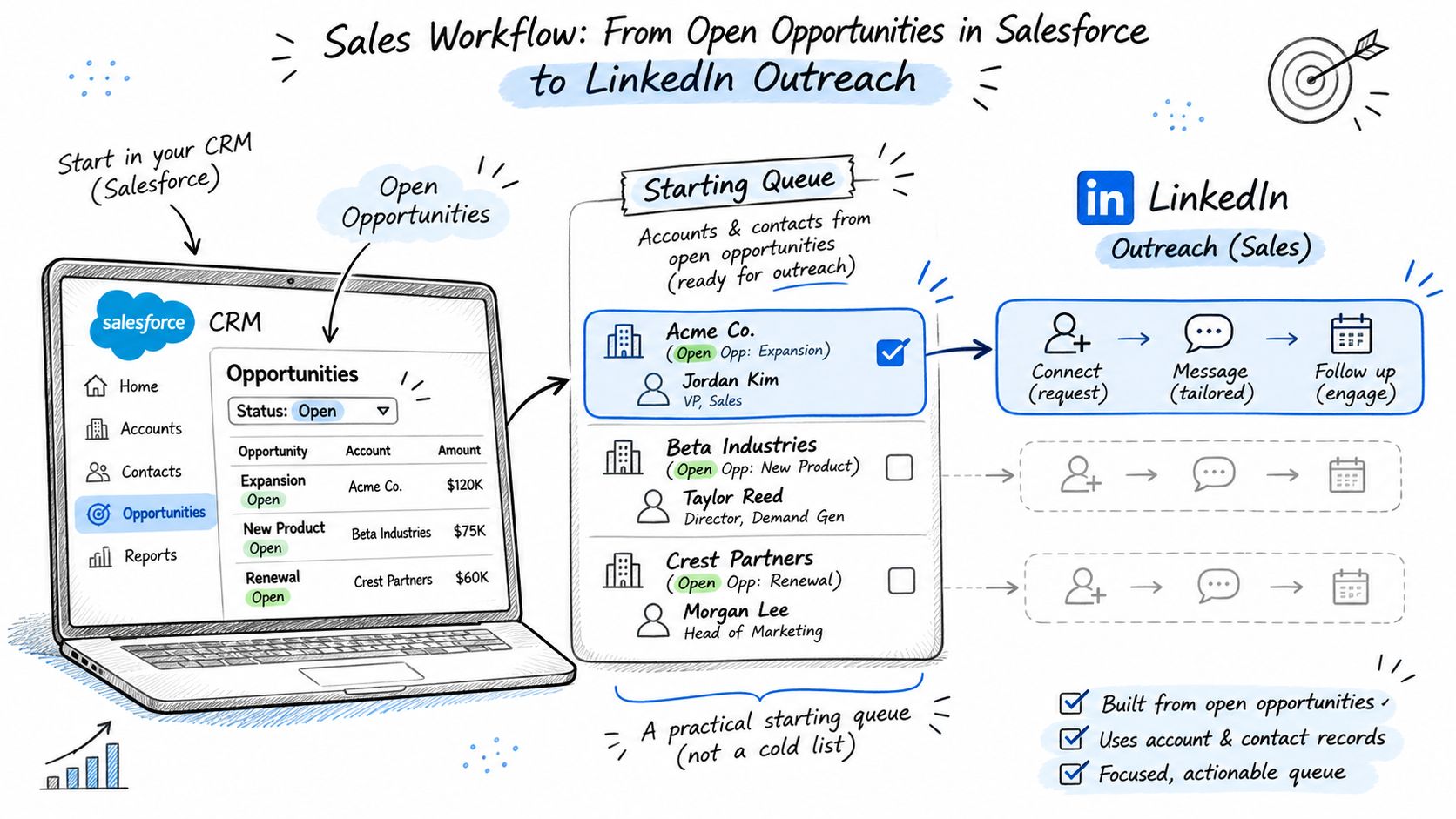
Cold accounts with no open opportunity are a different workflow. They need their own review, a source value, and a human check before anyone is created. Mixing them into the live-deal queue is how Marcus in finance gets a second record from a list upload.
The trade-off is real. A tighter queue produces cleaner records and fewer double touches, and it leaves less room for new-logo discovery. Run discovery as its own motion with its own owner. If you later combine channels, keep the same record and the same timing rules. A single sequence for LinkedIn and email only stays clean when both steps write to the opportunity's contacts, not to a fresh lead each time.
Compliance and Access Rules That Protect Your Account
A CRM connection is not permission to automate LinkedIn. OAuth approval and activity approval are separate decisions, and teams blur them constantly. Synchronization organizes accounts, contacts, ownership, stage, and logged activity. Sending connection requests, copying profiles, or downloading lists is a different action, and it needs its own sign-off.
LinkedIn's prohibited software policy bars third-party software that scrapes, changes how LinkedIn looks, or automates activity on the service. That includes bots or other unauthorized methods to access LinkedIn, add or download contacts, send or redirect messages, or create inauthentic engagement. Automated third-party activity can violate the User Agreement and may raise privacy-law issues in some jurisdictions. No vendor can guarantee that automation will avoid restrictions, because LinkedIn reserves the right to limit unauthorized activity. Good practice lowers risk. It does not remove it.
What actually leaves Salesforce
Before the checklist, write down the exit path. Salesforce sends specific record data to LinkedIn so matching and actions can run. Salesforce's help article on the integration is the place to confirm the current field list for your edition, because the fields in transit are an admin fact, not a sales preference. On the LinkedIn side, imported CRM data can sit in production systems, and LinkedIn enforces per-user API limits on integration traffic. Exact limits and log retention periods change, so confirm both in LinkedIn's developer documentation before go-live rather than copying figures from an older guide. A shared login or a bulk action is both a policy risk and a throttle.
For every connected tool, answer four questions in the same note: which fields leave Salesforce, who can see them, how long they persist, and how a leaver or a closed client account is deleted. Write the answers while access is still easy to change. Retrofitting this audit after a quarter of live prospecting is slow and political.
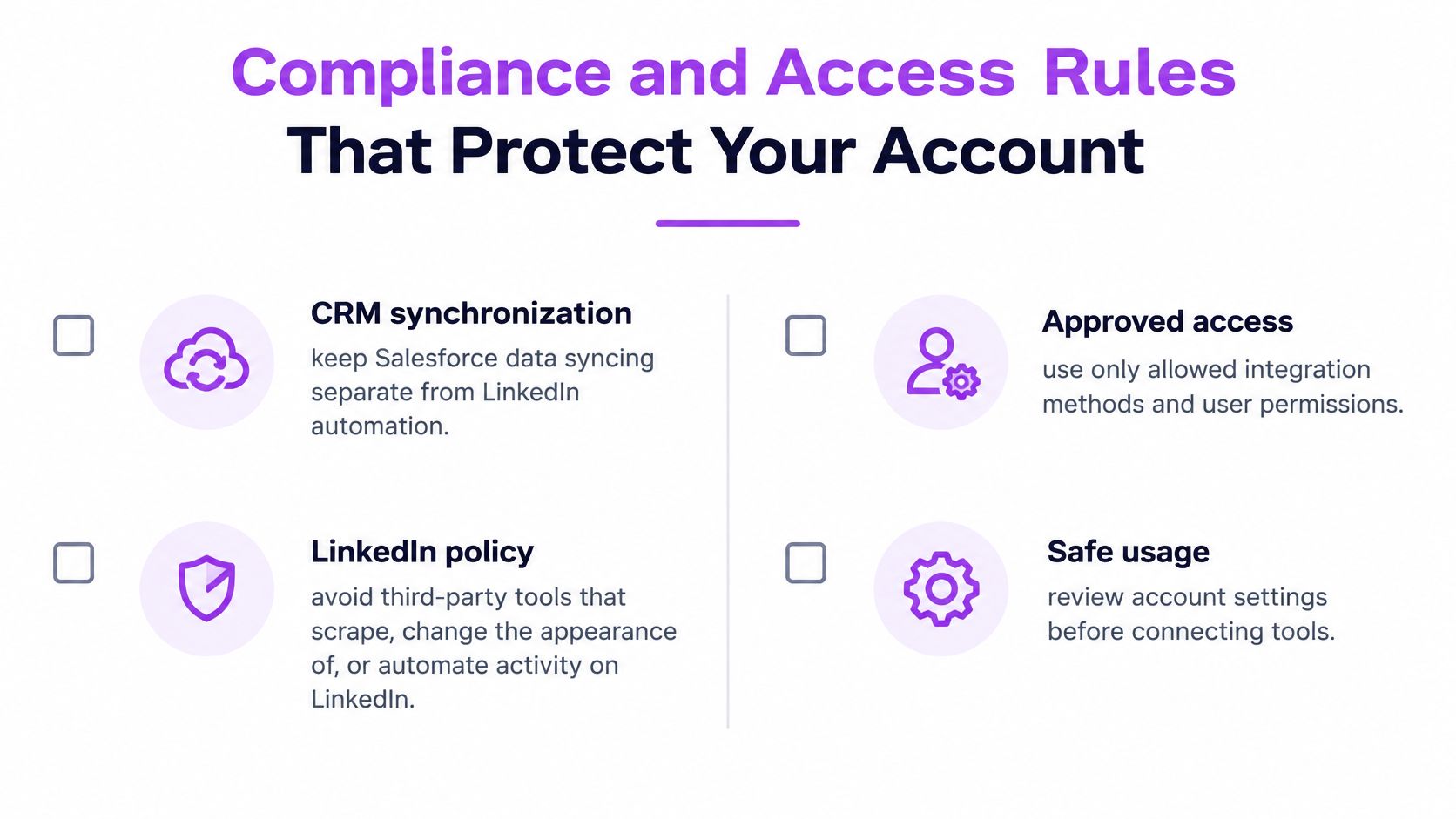
Checklist before anyone goes live
Data map. List every field that moves between Salesforce and each tool. If a field is not on the list, it does not sync.
Action path. For each LinkedIn action, say whether it runs through an approved integration or the user does it directly.
Least privilege. Give each person a Salesforce profile that matches their job. Review agency and contractor access on its own line, not as "same as employees."
Retention and deletion. Set the rule now, and run it when someone leaves, changes client, or loses a seat.
Initiator logs. Keep a record of which user started each action. A workspace named "SDR team" is not an audit trail.
Shared inboxes and multi-account workspaces widen the number of people who can read prospect conversations. That is useful for coverage and risky for client data. Separate workspaces by client, and do not leave a departed contractor's token active "until the renewal." Tools built for multi-account work make least privilege enforceable: Flowkon, for example, links each rep's LinkedIn account securely, controls who can edit campaigns through role-based permissions, and caps connected LinkedIn seats per workspace, so access reviews map to real controls instead of promises.
Ask the vendor, in writing, how automated actions are performed and what happens to stored CRM copies when you disconnect. If you want a practical read on limits versus guarantees, use safe LinkedIn automation practices and how to avoid account restrictions as the briefing for that vendor call. Keep their written answers next to the five items above, and recheck them at renewal, because vendors ship features faster than compliance reviews happen.
Fix Sync Errors and Duplicate Records
The first symptom is duplicate leads a week into prospecting. An SDR works five people on one account, ambiguous matches get inserted instead of queued, and by Friday the opportunity has two Priyas and a report that double-counts activity. Stop the batch before you clean reports. A duplicate created early spreads into sequences, campaign membership, and forecast.
The native import is not a true two-way merge, which is the part most setup guides skip. A practical write-up of LinkedIn Sales Navigator CRM Sync describes the behavior accurately. CRM Sync imports Salesforce accounts, contacts, and leads into Sales Navigator. Activity writeback appends selected activities such as messages, InMails, notes, or calls. It does not merge or reconcile LinkedIn-derived company and contact data with the CRM record. The import is also cumulative: records removed from Salesforce, or reassigned to another owner, can remain in Sales Navigator instead of being deleted.
That is why a prospect who changes employer appears twice. Writeback logged the conversation, but it never decided that the old contact and the new company are the same selling relationship. Records arriving through API integrations tend to create more duplicates than direct imports when no identity-resolution step sits in front of the write. More automation makes Salesforce dirtier when matching rules and an exception queue are missing.
Order of operations decides whether duplicates appear at all. Match on Salesforce ID first, then verified email, then LinkedIn identifier plus domain, and route anything ambiguous to a queue for review instead of writing it. When employer, owner, title, or lifecycle stage changes, Salesforce stays the record of truth for company, title, and stage. Merge the old record. Do not let the sync invent a second one and hope reporting filters it out.
| Symptom | Likely cause | Fix |
|---|---|---|
| Duplicate leads after a week of prospecting | Ambiguous matches were written instead of queued | Stop the batch, apply Salesforce ID then verified email then LinkedIn identifier plus domain, and clear the queue |
| Same person appears twice after an employer change | Activity writeback does not reconcile company or contact data | Keep Salesforce as record of truth for company, title, and lifecycle stage, and merge the old record |
| Removed or reassigned records still show in Sales Navigator | The import is cumulative and does not delete on removal | Run a monthly removal and reassignment check and record the new owner |
| Title or status changes without a user edit | The sync wrote a field Salesforce should own | Pause the sync, correct the field, and resume only for approved fields |
| LinkedIn activity has no Salesforce task | That activity type is outside the writeback set | Confirm CRM Sync saves that type, then log one test task |
| Writes rejected with field errors | A validation rule or required value failed | Read the rejection log and fix the mapping before the next run |
Work the rows from the top. Duplicates come first because they poison every later check: match precision, rejected writes, and stale-field overwrites all look better on a clean base table. Where a fix needs an owner decision, such as who controls job title, write the decision down before you resume the job. Each fix should leave a RevOps log line covering what changed, why, and which record IDs were touched, and the monthly removal and reassignment check belongs on that same log. Confirm the new owner whenever assignment rules or a territory change move a book of business.
One last trap: layouts and permissions still hide data after matching is right, so a "missing" task is often a profile that cannot see the activity, not a failed write. Check field-level security before you rerun the sync and create the duplicate you were trying to prevent.
Confirm the Pilot Before You Scale Up
The pilot ends in a go or no-go call, not a second tour of Setup. Pull the four measures you defined at kickoff: match precision, duplicate creation, rejected writes, and stale-field overwrites. Scale only when duplicate creation sits near zero in the sampled records and every overwrite lands on a field marked writable. A sync that loads records cleanly can still fail review if data sent to LinkedIn for matching has no retention or deletion rule.
Get the owners of Salesforce, the LinkedIn accounts, and client data to sign the compliance checklist in writing. A verbal OK in a chat thread does not survive an offboarding. Then widen access in stages: one team, then one region or workspace, then the whole organization. Read the reconciliation report after each stage. If the duplicate rate moves, stop and fix matching before the next group connects.
If the same team also runs LinkedIn and email sequences, put that tool through the same four checks. Confirm it stores which user started each action. Flowkon is one option to include in that pilot: its Salesforce integration can create prospects as Leads or Contacts and log selected LinkedIn campaign actions and replies as Salesforce Tasks. Configure the record type, task types, and campaign association before testing where each write lands. Each rep's LinkedIn account and email sending are linked securely, and no browser extension is needed. Most users connect their LinkedIn profile and launch a first campaign within 30 minutes. That speed only helps once the ownership table and the deletion rule exist. A fast connect that overwrites a governed field is a failed pilot.
One page closes the loop. Record the decision, the owner of each open item, and the date of the first removal and reassignment review. If any of the four measures is still open, the call is no-go. Fix the queue, rerun the sample, and hold the profile set where it is.
If the pilot needs sequenced LinkedIn and email activity synced into Salesforce from one platform, Flowkon covers that handoff. Connect a rep profile, run a governed sequence, and check the leads and activities landing in the CRM against the same four measures you used for every other connector. Start with a single workspace.