
A sales representative opens a CRM record before a prospect call. The last recorded activity is an eight-month-old webinar, although the prospect replied to a LinkedIn conversation yesterday. The representative must consult a separate inbox to prepare, while the CRM continues to show an incomplete account history.
This is the operational problem a LinkedIn CRM integration should solve. The CRM holds the contact and pipeline record; LinkedIn holds parts of the engagement history. Connecting the systems is valuable only when the resulting data flow is authorised, accurately mapped and regularly monitored.
LinkedIn CRM integration does not mean copying LinkedIn into your CRM. It means defining which data can move, choosing an appropriate route for each object and verifying that records remain accurate over time. Without those controls, an integration can create duplicate contacts, unreliable attribution and compliance exposure.
What a LinkedIn CRM Integration Actually Moves
Consider an agency with three representatives prospecting on LinkedIn and managing opportunities in a CRM. Replies and conversations inform the sales process, but staff still transfer names, titles and notes from a spreadsheet each week. Pipeline reports then omit recent engagement, leaving account owners to reconcile information across systems.
Manual entry has a measurable cost. Sales representatives spend only 34% of their time selling and approximately 13 hours per week on manual data entry, according to Superoffice's CRM statistics roundup. The same roundup reports a 26% productivity improvement associated with properly integrated CRM systems. Those figures reinforce the case for reducing avoidable administrative work, although any individual team's results will depend on its workflow and implementation.
The CRM should remain the system of record for ownership, pipeline stage, forecasting and attribution. Integration should make relevant LinkedIn-sourced information available on the appropriate record without treating every visible profile detail or interaction as data that may be retained.
| LinkedIn data | Usual CRM destination | Route or review requirement |
|---|---|---|
| Lead Gen Form responses | Contact record with form and campaign attribution | Official Lead Sync through Lead Gen Forms |
| Sales Navigator contacts and accounts | Contact and company context, subject to the configured sync direction | Sales Navigator CRM sync |
| Messages and connection events | Contact activity timeline, where supported and authorised | Confirm the specific route and permissions with legal before enabling |
| Bulk profile export | Not a recommended CRM input | Not a sanctioned sales route under LinkedIn API terms |
For example, a prospect submits a webinar Lead Gen Form. An authorised form sync can transfer the submitted work email, company, job title and applicable consent information into the CRM. Mapping the form and campaign as source fields then helps the team assess which campaigns contributed to later opportunities.
A bulk profile pull is materially different. Information being visible in a browser does not, by itself, establish permission to collect or retain it in a CRM. If a team needs to improve information on records it is authorised to create, lead enrichment should be evaluated as a separate, governed step rather than treated as justification for bulk export.
Before selecting a connector, inventory the LinkedIn-related data your team currently handles. Forms, CRM context, activities and profile data do not share the same permissions or technical routes.
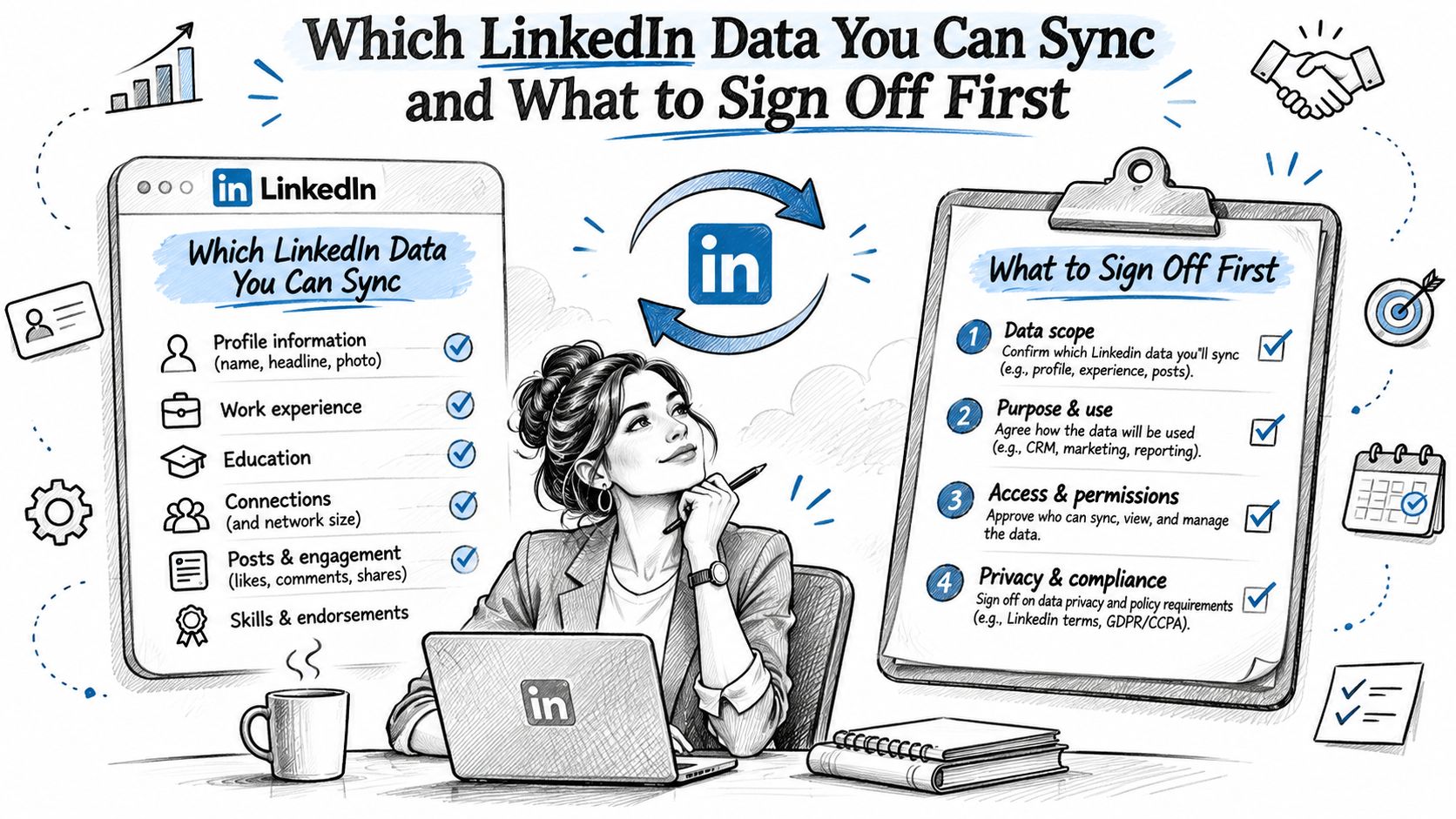
Which LinkedIn Data You Can Sync and What to Sign Off First
Enabling every available object when a connector goes live is not a sound default. LinkedIn's API restrictions prohibit using member data for certain sales and recruiting purposes, including identifying prospects, creating leads, enhancing CRM records and building audience lists. They also limit retention of most profile data to 24 hours and social-activity data to 48 hours, as described in LinkedIn's restricted use cases documentation. Approved CRM Connect arrangements have additional developer-approval and API-agreement requirements for external CRM export.
These restrictions need to be evaluated in the context of the specific product and permission in use. A connector's ability to transfer a field does not establish that your organisation may retain it indefinitely. Document the applicable route, permitted purpose and retention rules before creating a persistent CRM field.
The three-way test
Evaluate every proposed data object against three questions:
What authorises collection and transfer? Identify the form submission, approved integration permission or other applicable basis. Do not treat a browser script as a substitute for authorisation.
What is the defined purpose? Specify how the field supports a legitimate workflow, such as recording an authorised lead submission or documenting a representative's own activity.
What is the retention rule? Set an object-specific period and a process for deletion or review. Do not assume that CRM defaults satisfy the source platform's requirements.
These questions help distinguish authorised activity records, submitted form data and data that should not be synced. The last category includes bulk-collected profile information where the team cannot establish an appropriate collection and retention basis.
The boundary between approved transfer and bulk collection should be explicit in the implementation plan.
What is not a data flow
LinkedIn prohibits third-party software, crawlers, bots, browser plug-ins and extensions that scrape or copy profiles and other service data, or automate actions such as adding or downloading contacts, sending or redirecting messages, and creating or engaging with posts. These restrictions appear on LinkedIn's User Agreement page. The guidance also notes potential privacy-law implications in some jurisdictions.
A CRM connection does not make every related workflow officially approved, and no vendor can guarantee that an account will avoid restrictions. Review each product's actual permissions and methods rather than inferring approval from the presence of an integration.
Decision rule: do not sync an object until its source, authorised purpose and retention requirement are documented.
The sign-off checklist
Have the CRM owner and appropriate legal or privacy reviewer approve the proposed configuration before field mapping begins:
Identify the source of every object and field proposed for transfer.
Document the applicable basis for collecting, processing and retaining each data type.
Define its purpose and retention period, including any source-platform limits.
Confirm deletion and opt-out handling, including updates to records already transferred.
Restrict access by role and clarify who can view or modify sensitive fields.
Record written approval before launch. Leave message and connection-event logging disabled until the specific route has been reviewed.
Comparing LinkedIn-to-CRM Sync Routes
| Route | What syncs | Setup effort | Main limitation |
|---|---|---|---|
| Lead Gen Form sync | Submitted form responses | Medium: ad account access and field mapping | Limited to people who submit a form |
| Sales Navigator CRM sync | CRM objects and fields into Sales Navigator; available activity writeback depends on configuration | Low to medium | Not an assumption of real-time, fully bidirectional sync |
| Native CRM connector in a sales tool | Supported contacts, activities and replies, depending on the tool | Low to medium | Objects, permissions and write rules differ by vendor |
| Manual CSV import | One-off, appropriately sourced files | Low | No ongoing updates; matching and duplicate controls are manual |
The correct route depends on where the data originates and what the team needs the destination system to do. Use the route comparison alongside the field-mapping process below, not as a substitute for permissions review.
Lead Gen Forms. LinkedIn's documented Lead Sync process includes user authorisation, selection of relevant ad accounts, organisation validation, form retrieval, field mapping, registration for lead notifications and delivery to a CRM or customer-data platform. The process and its r_marketing_leadgen_automation permission are detailed in LinkedIn's Lead Sync documentation. Forms and responses are distinct API resources. This route is well suited to campaign submissions, but it does not capture prospects who have not completed a form.
Sales Navigator CRM sync. This route brings CRM account, contact and lead context into Sales Navigator and performs daily difference updates. Depending on the supported configuration, selected activity may also write back. Define each direction explicitly: a CRM change should not be assumed to appear on LinkedIn immediately, and a Sales Navigator view should not be mistaken for a newly created CRM contact.
Native connectors. HubSpot's documented LinkedIn CRM Sync handles contacts, companies, deals and owners as separate synchronisations. Consequently, enabling contact sync does not necessarily activate company or deal sync. If HubSpot is your CRM, compare its documented behaviour with the HubSpot integration. For any connector, confirm the supported objects, the direction of each transfer and whether replies or activities actually appear on a test record.
Manual CSV import. A file can be appropriate for a one-time migration or an attendee list when the team has the necessary rights and permissions to use it. Importing does not maintain future updates. Review provenance, consent where applicable, matching rules and retention before the file enters the CRM.
Browser extensions that scrape profiles or automate restricted actions are not an alternative to these reviewed routes.
How to Map Fields and Stop Duplicates
Field mapping determines whether the integration produces a usable record or creates conflicting versions of the same contact. Configure the first release in a controlled sequence.
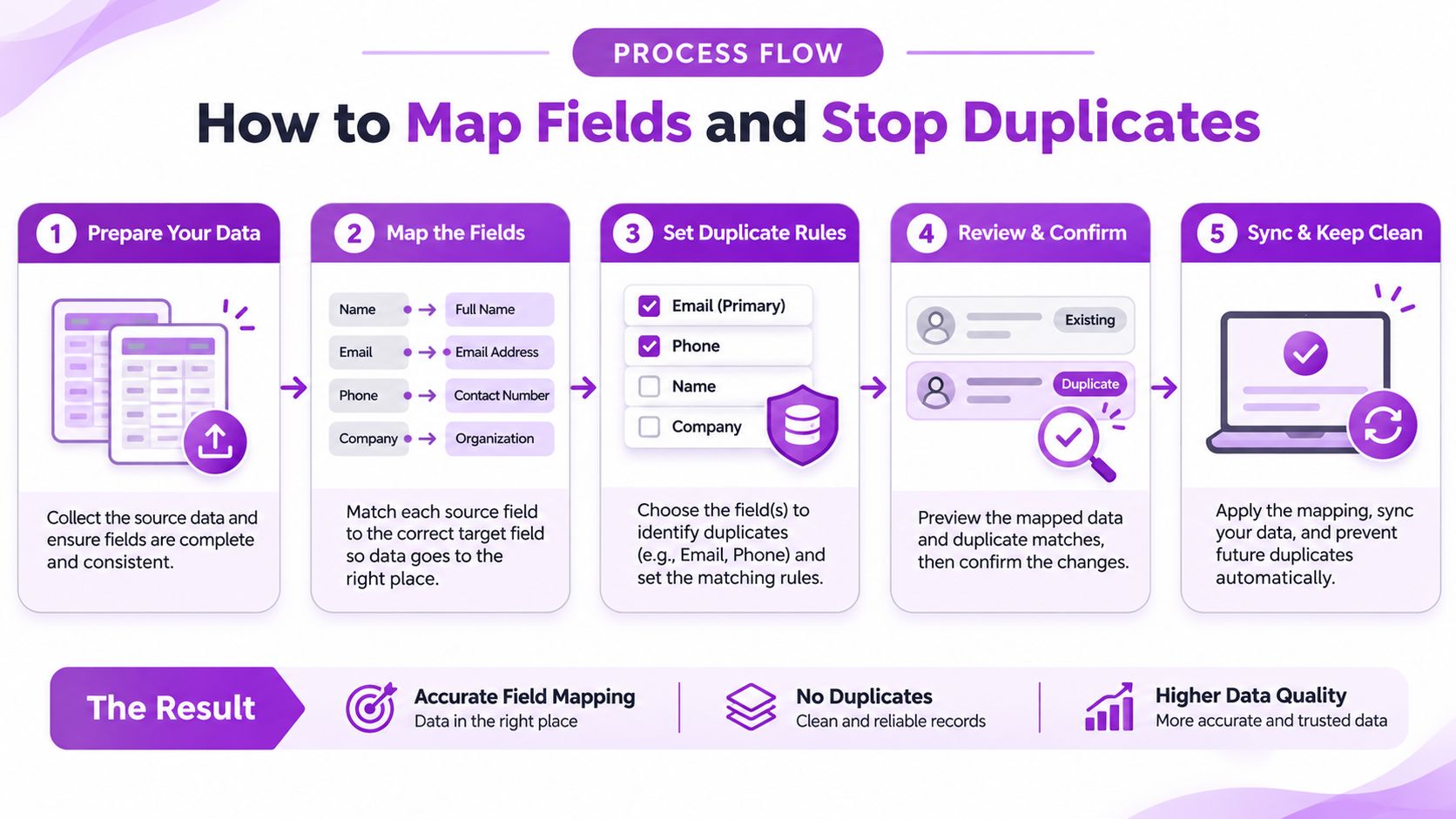
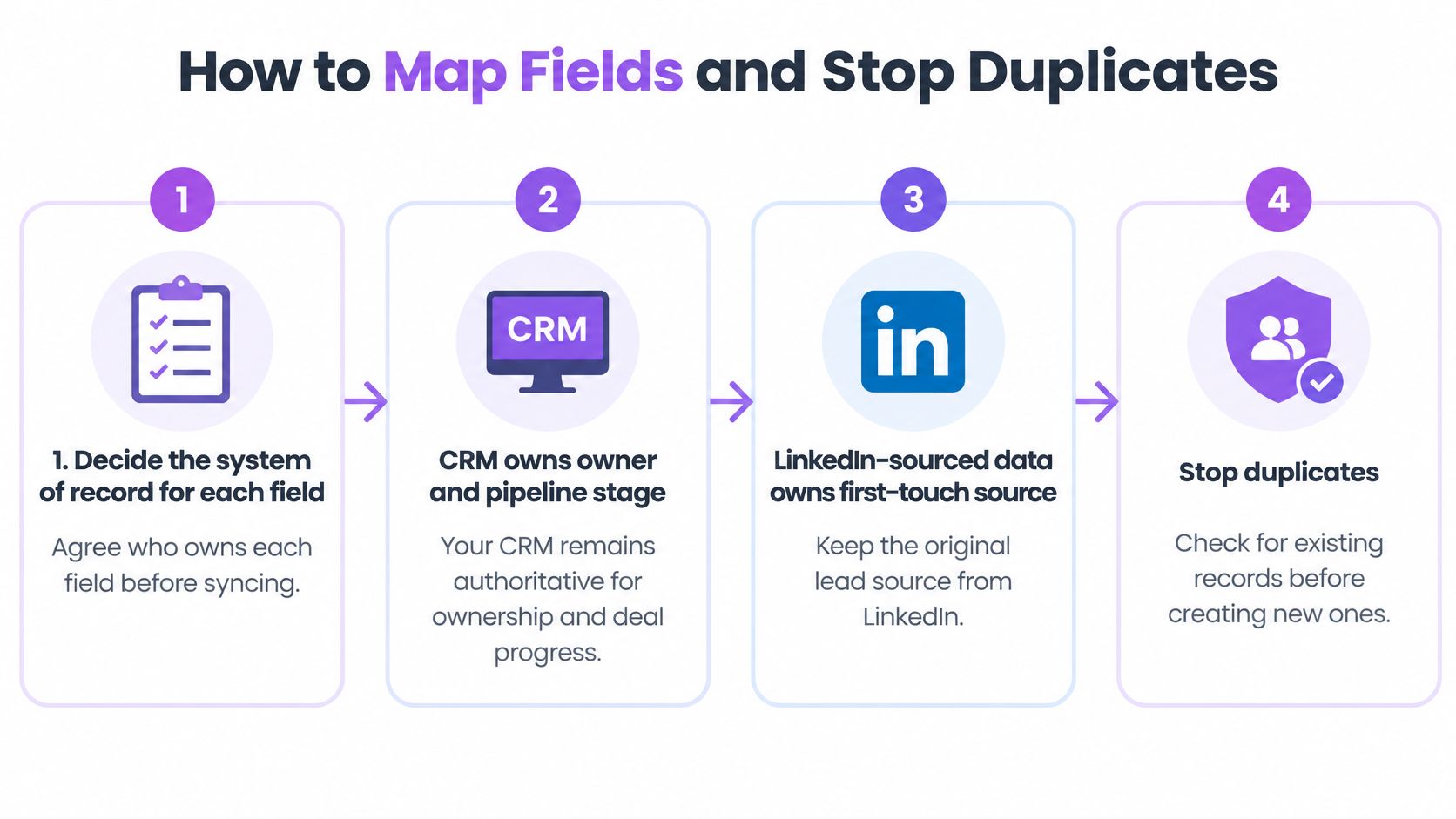
1. Assign a system of record to each field. The CRM should own fields such as opportunity stage, deal amount and record owner. Where authorised, the integration can populate the original form or campaign source. Document which system may create and update each field so two processes do not compete for the same value.
2. Establish a matching strategy. Work email is often a practical primary match for B2B form submissions. Where a permitted LinkedIn lead identifier is available, store it separately to help distinguish later submissions after an email change. Do not use company name alone as a contact key; multiple people and unrelated entities can share a name.
3. Start with essential fields. Map the submitted work email, company, job title, form or campaign name and relevant consent information where supported and authorised. Add fields only when they serve a defined purpose and their source and overwrite rules are clear.
4. Define company association rules. An email domain can be a useful matching signal, but shared domains, subsidiaries and personal email addresses require exceptions. Use a review path for uncertain matches rather than automatically creating or merging a company based on its name.
5. Enable objects separately. HubSpot describes distinct syncs for contacts, companies, deals and owners, along with a separate "Start all syncs" action in HubSpot's LinkedIn CRM Sync guide. Even if your CRM differs, activate and test one object at a time. Handle owner assignment through a CRM-side rule where no direct LinkedIn equivalent exists, and confirm each update direction before enabling the next object.
6. Set update precedence. Decide which source may replace a job title and under what conditions. Protect CRM-owned fields, particularly owner and opportunity stage, from unintended updates. Record the rule before production sync begins.
7. Test a small representative set. Approximately twenty records provide a manageable pilot. Include a repeat submission, missing data, revoked access, delayed notification and an existing CRM contact. Check both successful writes and the handling of failures.
Activating all objects simultaneously makes duplicate creation and unintended overwrites difficult to trace. Isolate each sync until its behaviour is verified.
If records arrive in a file, validate and deduplicate them before import. Safe CSV imports for contact lists covers formatting and matching issues that can create duplicate records.
A successful initial rollout has clear evidence: form submissions appear within the agreed time window, campaign attribution is present, duplicate creation is controlled and the team can inspect write errors without relying on anecdotal reports.
Sync Failures to Catch Before Reps Notice
Not all integration failures generate an obvious error. A Lead Gen Form and a separate sales tool may each create a contact for the same person. Both writes can succeed while the resulting records split activity history and campaign attribution. A green connector status will not identify the business-level problem.
Multiple tools writing through Salesforce's API at different times can also create conflicts and missing leads, as LeanData's analysis of CRM sync conflicts explains. Monitor record outcomes as well as connector availability.
| Symptom | Likely cause | Check or fix |
|---|---|---|
| Same person appears twice | Weak matching rule or multiple contact creators | Inspect creation sources, merge where appropriate and match before creating |
| Lead missing from CRM | Failed write, permission issue or retry backlog | Review write logs, access and the retry queue |
| Job title is out of date | No refresh or incorrect update precedence | Review the last sync date and field ownership |
| Deal owner is wrong | Missing or conflicting owner rule | Apply an explicit CRM-side assignment rule |
| Expected replies are not logged | Unsupported activity, missing permission or delivery delay | Verify the authorised route and compare sample timelines with the source |
| Two systems change one field | No designated field owner | Restrict writes to the designated system of record |
The weekly health check
Review six measures each week, using a consistent sample and period:
Sync latency: time from a form submission to the corresponding CRM record.
Duplicate rate: duplicate records created during the period, measured before cleanup.
Field-conflict rate: records with competing values for a field governed by a precedence rule.
Failed-write rate: attempted writes that errored or entered a retry queue.
Attribution coverage: share of relevant LinkedIn-sourced contacts with a form or campaign source.
Valid identifier coverage: share of eligible records with an authorised, usable source identifier.
Establish thresholds after collecting a baseline from your own implementation. A vendor benchmark cannot tell you whether a change in your weekly results reflects normal campaign volume or a broken sync.
Durable architecture: keep the CRM as the governed record and retain an auditable log of authorised integration events. A changed field should not be the only evidence that an update occurred.
Where supported, real-time webhook events can feed sync outcomes into an operational log or alert channel. Verify which events the chosen integration emits before relying on them for monitoring.
Start With One Form and Check It Weekly
Choose a single initial source: one active Lead Gen Form or one clearly scoped Sales Navigator CRM sync. Do not launch both alongside multiple activity writers in the first phase.
For a two- to four-week pilot, complete permissions review and field mapping in week one, then test representative records. In subsequent weeks, review latency, duplicate creation, field conflicts and write errors. At the end of the pilot, set thresholds from observed results and correct mapping rules before adding another source.
If Flowkon is under consideration, apply the same route, permission and field-level review. Its onboarding process is to create an account, connect a LinkedIn profile, launch a campaign, then sync the CRM and track results, as outlined in our four-step onboarding. Flowkon's CRM integrations sync contacts, activities and replies automatically on its Professional and Custom plans. Test those outcomes against your own CRM records and approved workflow rather than treating a connected status as proof of complete data.
The immediate next step is practical: select the first source, document its fields and write rules on one page, and review that plan with the owner of CRM data before enabling the sync.
A reliable LinkedIn CRM integration is a governed process, not a connector checkbox. Flowkon supports LinkedIn and email touchpoints in one campaign flow and integrates with HubSpot, Salesforce, Pipedrive, Zoho and monday.com. Its CRM integrations sync contacts, activities and replies on the Professional and Custom plans. If you are evaluating a first integration or resolving an existing one, visit Flowkon to assess how its supported workflow fits your CRM controls and reporting requirements.